
The ingress flow: from event to Event Mesh queue
The ingress flow accepts an event and publishes it, unchanged, to a queue. What it does, which sender adapter fits the source system, how to configure the AMQP receiver adapter and how to verify that events reach the queue.

An event-driven integration with SAP Event Mesh consists of two integration flows. The first accepts the event and puts it into a queue; the second picks it up from there and writes it to the target system. This article is about the first one, the ingress flow: what it does, how to build it and how to verify that events actually reach the queue.
What the ingress flow does
The ingress flow has one job: accept an event and publish it, unchanged, to a queue. It contains no mapping, no enrichment and no validation against the target system. It doesn't know the target system at all.
The two flows don't reference each other; the only thing connecting them is the queue name. If you undeploy the consumer flow, the ingress flow keeps accepting events and the queue holds them until the consumer is back.

The sender adapter depends on the source system
In SAP Integration Suite, the sender adapter (opens in a new tab) is whatever triggers the flow, and the receiver adapter is whatever the flow sends to. So the sender isn't the system that owns the data; it is the thing that starts the flow. For the ingress flow that is the event source; for the consumer flow it is the queue.
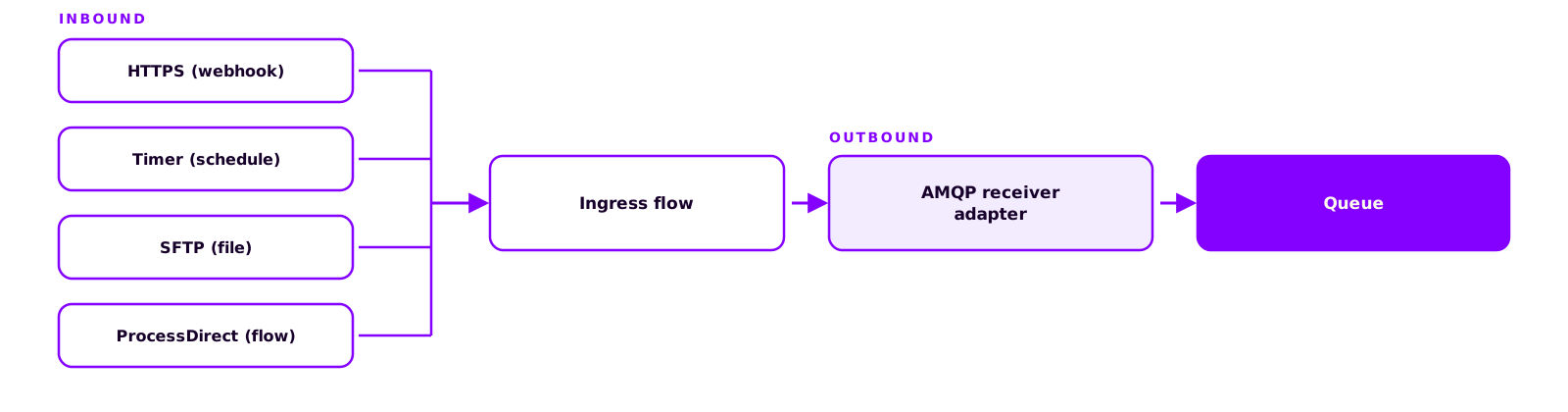
Which sender adapter you use depends on what the source system offers:
- HTTPS, if the source system calls a webhook
- Timer, if the flow polls an interface on a schedule
- SFTP, if files are dropped into a directory
- ProcessDirect, if another integration flow delivers the event
You can change the inbound side without touching the consumer flow. If a source system drops files today and calls a webhook tomorrow, only the sender adapter of the ingress flow changes.
The AMQP receiver adapter sends to the queue
The outbound side is the same for every ingress flow: the AMQP receiver adapter (opens in a new tab) sends the message to the queue in Event Mesh. For Event Mesh you use the adapter type AMQP WebSocket and authenticate with OAuth2 client credentials (SAP Help Portal (opens in a new tab)).
The credentials come from the service key of your Event Mesh instance. It contains the host, the token endpoint, the client ID and the client secret; in Integration Suite you store them under Security Material as OAuth2 client credentials and reference them in the adapter.
The queue has to exist before you deploy. Cloud Integration doesn't create queues; you create them in the Event Mesh cockpit (opens in a new tab), namespace included. The full queue name is the only contract between ingress flow and consumer flow, so name it after the event rather than after today's receiver: acme/crm/prod/customer.created stays valid when two systems consume it instead of one.
Setup in four steps
Start with the outbound side, because the adapter references a queue and credentials that already have to exist.
From empty flow to filled queue
- Create the queue
Create a queue in the Event Mesh cockpit and note its full name, namespace included. The consumer flow will use exactly this name.
- Create a service key
Create a service key for the Event Mesh instance. Store client ID, client secret and token endpoint in Integration Suite under Security Material as OAuth2 client credentials.
- Set the sender and receiver adapters
Pick the sender adapter to match the source system (HTTPS, Timer, SFTP, ProcessDirect). Configure AMQP WebSocket as the receiver adapter with the stored credentials and the queue as the destination.
- Deploy and verify with a test message
Deploy the flow, send a test message to its endpoint and check in the Event Mesh cockpit that the queue's message count shows 1.
Why business logic doesn't belong in the ingress flow
We recommend limiting the ingress flow to accepting and publishing, even when a small mapping would be convenient at that point. As soon as the ingress flow knows anything about the target system, the decoupling is gone: if a field changes there, you have to adjust and redeploy the inbound side, and while you do, no events are accepted.
If the event sits in the queue unchanged, you can rebuild the consumer flow, redeploy it or add a second one while events keep arriving. Mapping, enrichment and validation belong in the consumer flow, which knows the target system.

Verifying that events reach the queue
A successful deployment tells you the artifact is installed. It doesn't tell you whether a message reaches the queue: Cloud Integration monitors only the integration flow, and queues and messages can only be monitored with the tools of the message broker (opens in a new tab). What tells you the truth is the queue's message count in the Event Mesh cockpit.
- Undeploy the consumer flow. While it runs, it picks up every message immediately and the count stays at zero.
- Send a test message through the ingress flow. Call the flow's endpoint with any HTTP tool. The message then takes the same route as in production, credentials in the AMQP adapter included. A test via Test Messaging in the Event Mesh cockpit or via the Event Mesh REST API (opens in a new tab) only checks the queue and subscription, not your flow.
- Check the message count. If it shows 1, the chain from inbound to queue works. If it stays at zero even though the flow reports success, the fault sits between the flow and Event Mesh, usually in the adapter configuration or the credentials.
You can then read the message from the queue via Consume Messages in the cockpit and check its format.

Keep reading
Related articles
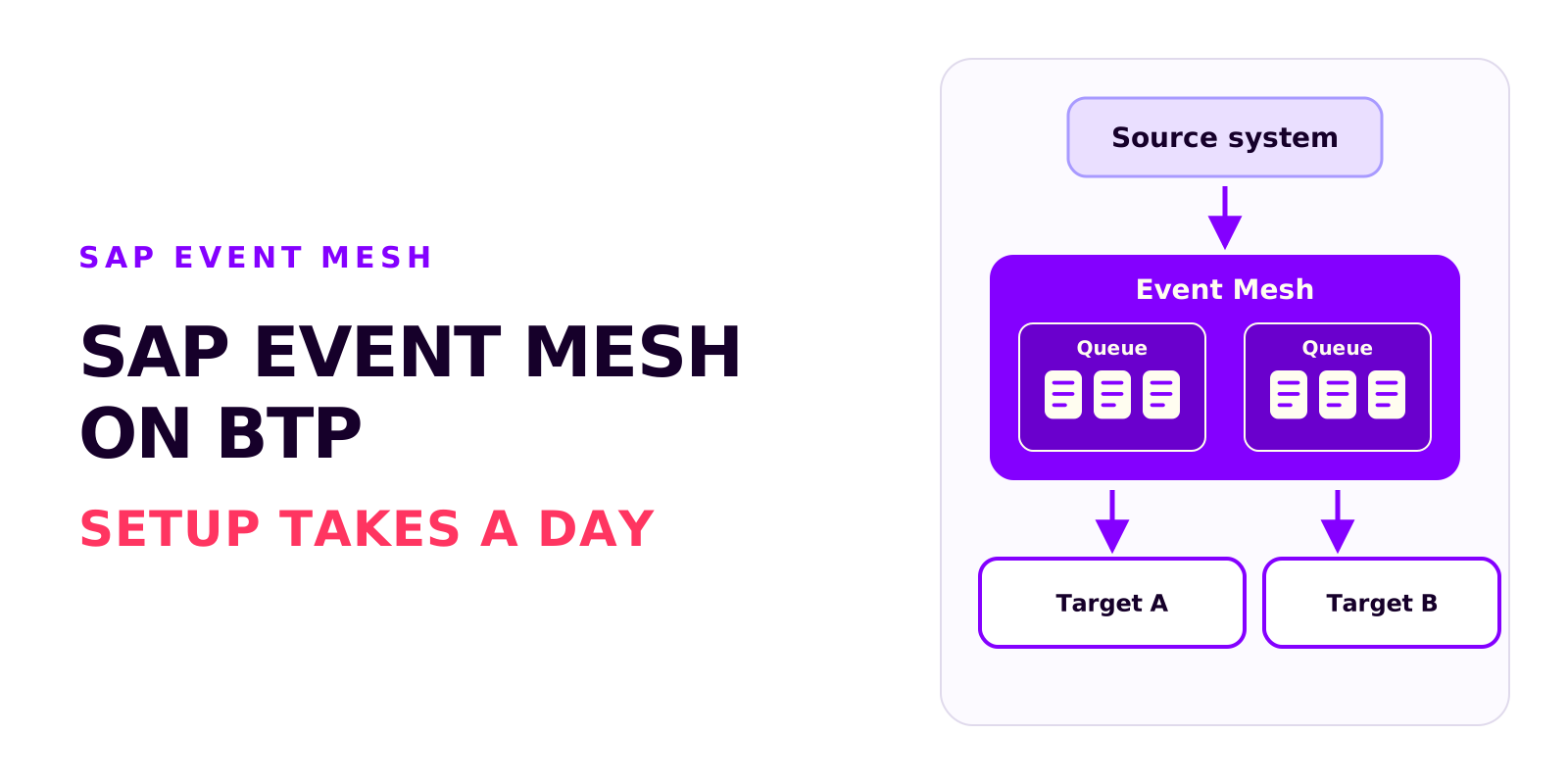
SAP Event Mesh on BTP: requirements, cost and the most common mistakes
Björn OstermannTopic: SAP ConsultingSetting up Event Mesh takes a day. The work goes into entitlements, role collections and event processing. What the service does, what you need to run it and what it costs.
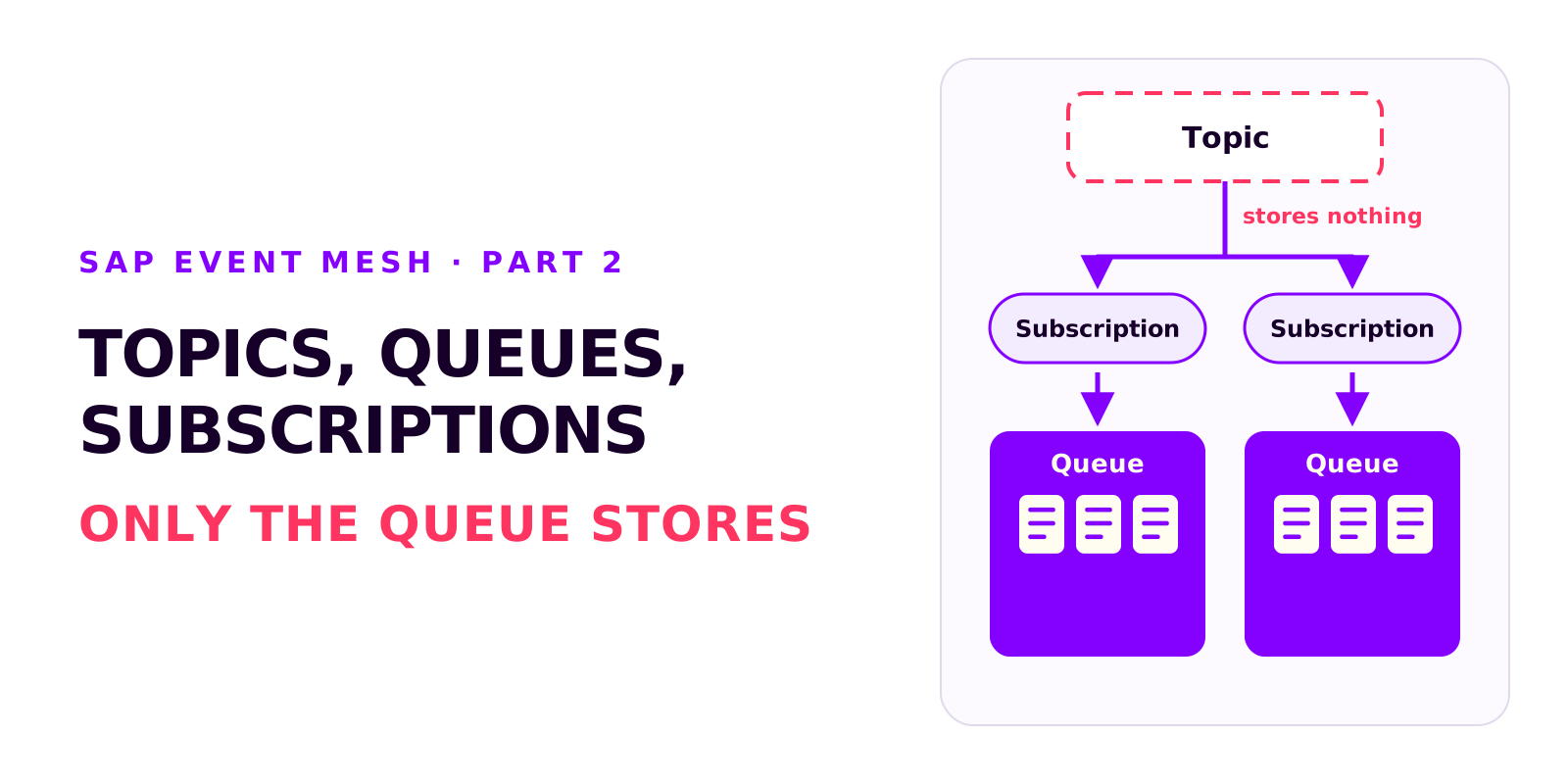
Topics, queues and subscriptions in SAP Event Mesh
Björn OstermannTopic: SAP ConsultingTopic, queue and subscription are three different objects. What each of them does, in which order to create them, how the namespace becomes part of every name and which wildcards subscriptions support.
Diagnosis in SAP Event Mesh: which view tells you what
Björn OstermannTopic: SAP ConsultingA decoupled integration has no end-to-end error message. Which four views in Event Mesh and Integration Suite tell you what, how to test without a source system, and how comparing the counters tells you where to look.
Book a call
Planning an event-driven integration?
Talk to us. We can help with setup, event processing and error handling.
- 30 minutes
- no commitment